Developer settings
The Developer Settings tab on your product detail page contains the technical configuration needed to integrate k-ID into your product. This includes API keys, webhook endpoints, target origins, and API URLs.
API keys
Each product has separate API keys for test and live environments, keeping your development and production traffic isolated.
| Key type | Used for | Configuration source |
|---|---|---|
| Test API keys | Development and testing | Test environment configuration |
| Live API keys | Production | Published live configuration |
Creating a key
- Navigate to the Developer Settings tab on your product.
- In the API Keys section, select the environment (Test or Live).
- Click the create button and give the key a name, for example, "Production Server" or "Staging Environment."
- The key is generated and displayed. Copy it immediately, as the full key isn't shown again.
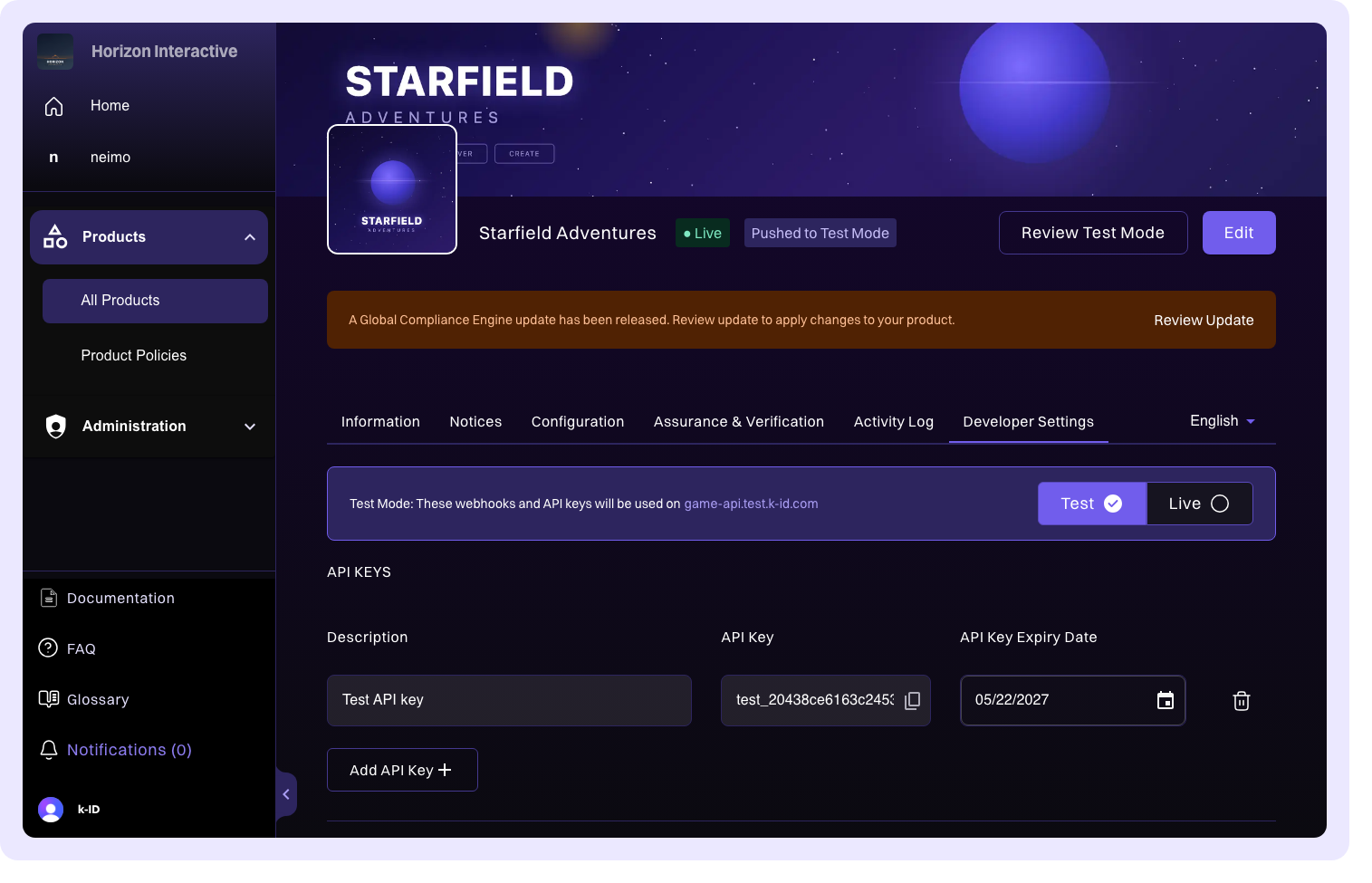
You can create multiple keys per environment. This is useful when different services or deployment stages need their own keys, for example, separate keys for your game server and your analytics pipeline.
Key security
API keys should be kept server-side and never exposed in client-side code. Treat them as you would passwords:
- Store keys in environment variables or a secrets manager
- Never commit keys to source control
- Never include keys in client-side JavaScript, mobile app bundles, or any code that ships to end users
If a key is compromised, revoke it immediately from the Developer Settings page and create a new one.
Webhooks
Webhooks let k-ID notify your server when important events occur, such as a challenge state change, a verification result, or a session permission update.
Configuring webhooks
Configure separate webhook endpoints for test and live environments:
- In the Webhooks section, select the environment.
- Enter your webhook URL. This is the endpoint on your server that receives POST requests from k-ID.
- Save the configuration.
Available event types
Webhook events cover the key moments in the compliance lifecycle:
- Challenge state changes
- Verification results
- Verification revocations
- Parental consent grants
- Session permission changes
- Session deletions
- Test events (for validating your webhook setup)
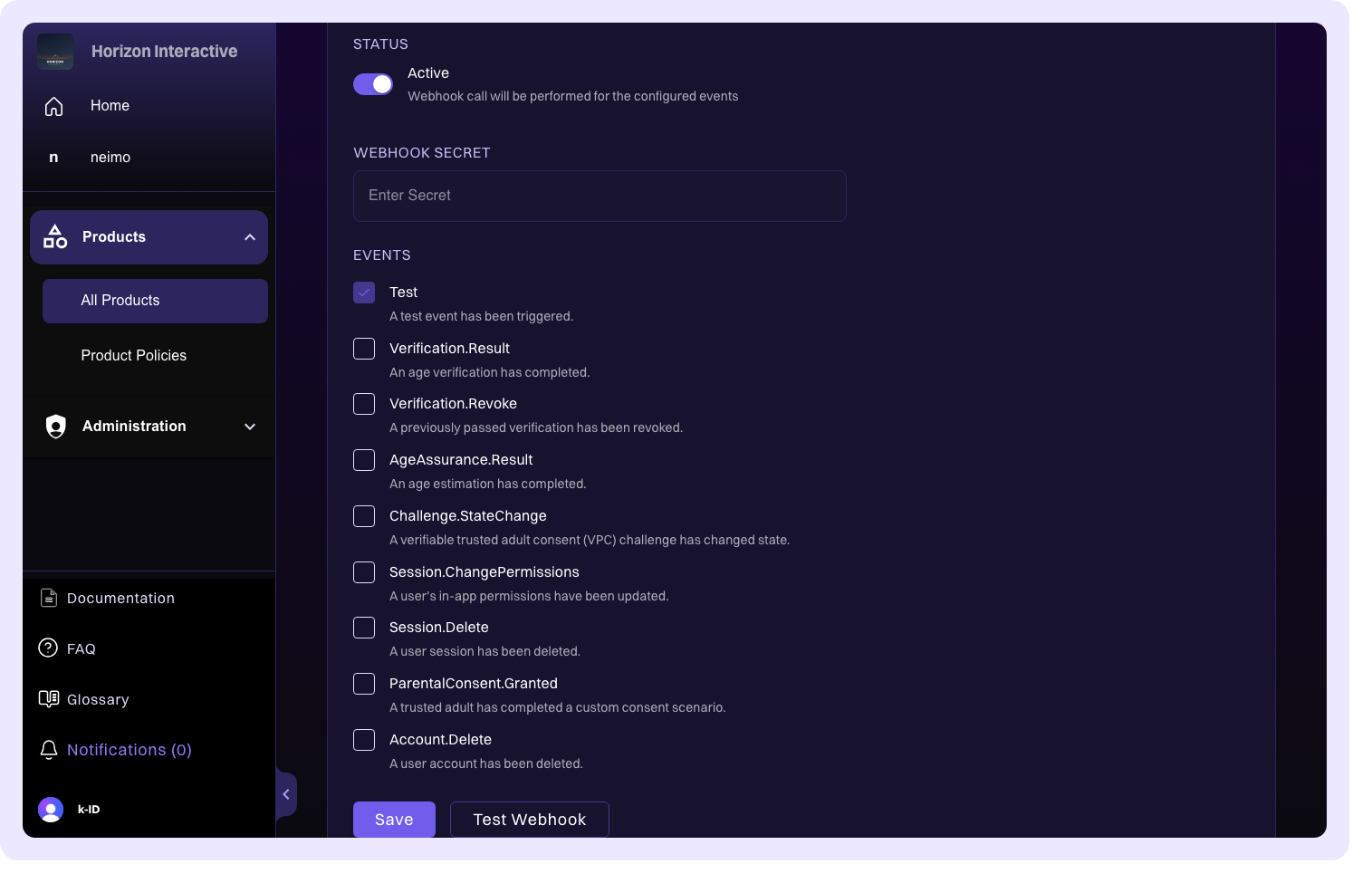
Each webhook delivery includes a signature header that you should verify to confirm the request originated from k-ID. For the full webhook event reference, including payload structures and signature verification, see Webhooks.
Target origins
Configure the allowed origins (domains) for client-side integrations. When using k-ID widgets or client-side APIs, requests are validated against these origins to prevent unauthorized usage.
Add your development, staging, and production domains. Each origin should be a full origin URL, for example:
https://yourgame.comhttps://staging.yourgame.comhttp://localhost:3000(for local development)
Tip
Remember to add all environments where your integration runs, including local development URLs. Requests from origins not in this list are rejected.
API URLs
Your product detail page displays the API base URLs for both environments. These are the URLs your server uses when making requests to the k-ID API.
| Environment | Usage |
|---|---|
| Test API URL | Used with test API keys during development |
| Live API URL | Used with live API keys in production |
Use the URLs shown on your product's Developer Settings page; don't construct them manually.