Version history and rollback
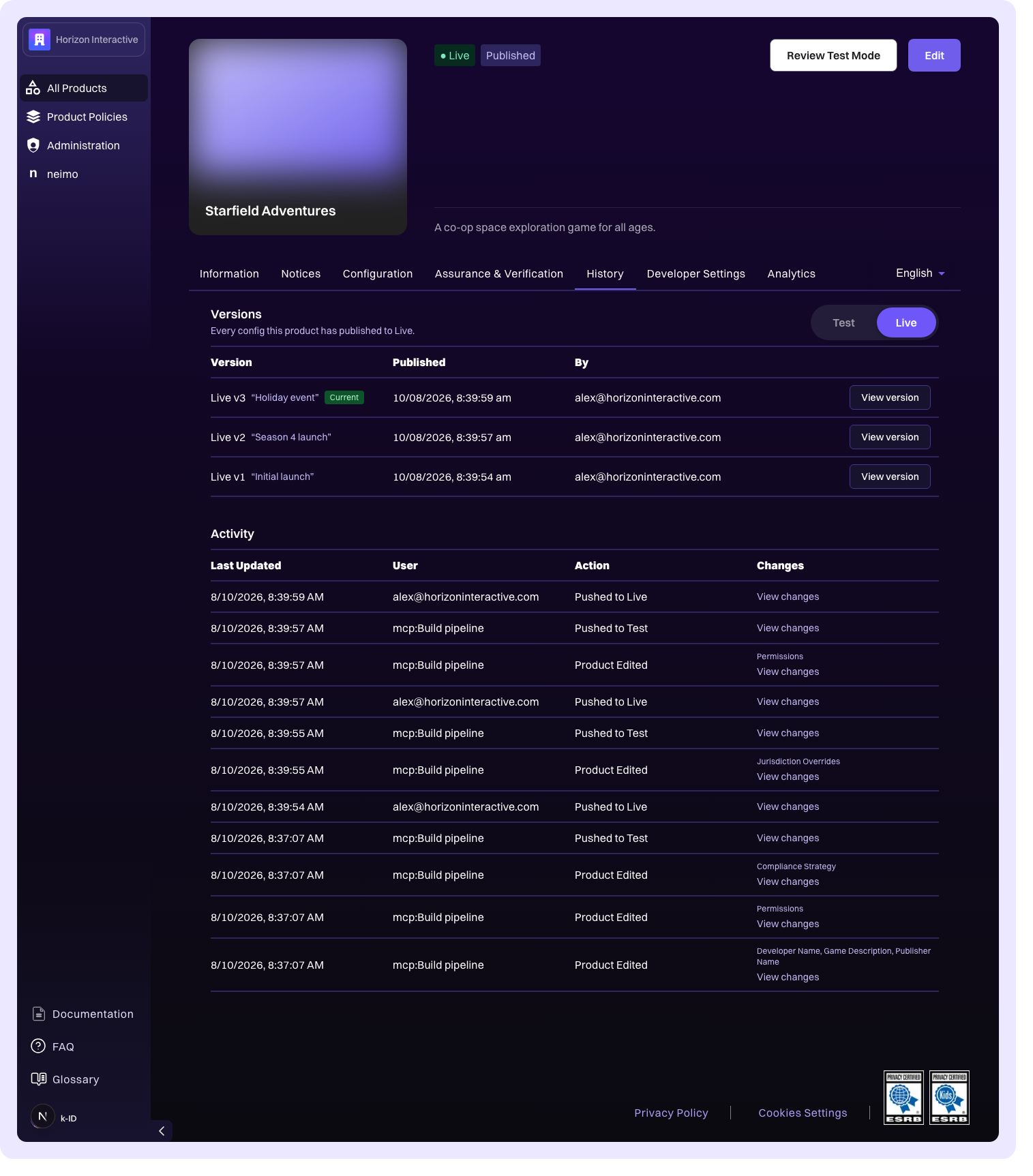
Every configuration your product has published is kept. The History tab on a product shows what changed, when, and who changed it, and lets an administrator point Live back at a configuration it served before.
For how configurations get to Test and Live in the first place, see Testing and publishing.
Activity
The Activity section lists everything that has happened to the product: pushes to test and live, review submissions and outcomes, accepted Compliance Engine updates, API key and webhook changes, policy attachments, and ordinary edits in the product editor.
Entries that changed the configuration carry a View changes link. Opening it shows exactly what that one entry changed, split into two tabs:
- Product settings: product details, access settings, permissions, notices, and verification
- Compliance Engine: the jurisdiction rules that resulted
A few settings can't be drawn in either tab. Where an entry changed one of those, they're named under Also changed, so nothing in the entry goes unaccounted for.
Versions
The Versions section lists every configuration the product has published, newest first, with the version it's serving marked Current. Use the toggle to switch between Live and Test; the list opens on Live.
Versions are numbered per environment in publish order, so Live v3 is the third configuration this product published to live. Numbers never change or get reused, including after a rollback.
Naming a version
When you push to live you can give the version an optional name, such as Season 4 launch. The name sits alongside the version number everywhere the version is shown, and you can add or change it later from the version itself.
Names are for your own reference. They have no effect on what the version serves.
Reading a version
Click a version to open it. Depending on the version, up to four views are available:
| View | Shows |
|---|---|
| This Version | The configuration as published, in full |
| Changes | What this version changed from the version published before it |
| Rollback or Make Current | What would go live if you pointed Live at a different version |
| Reset | What you would lose by resetting your working copy to match this version |
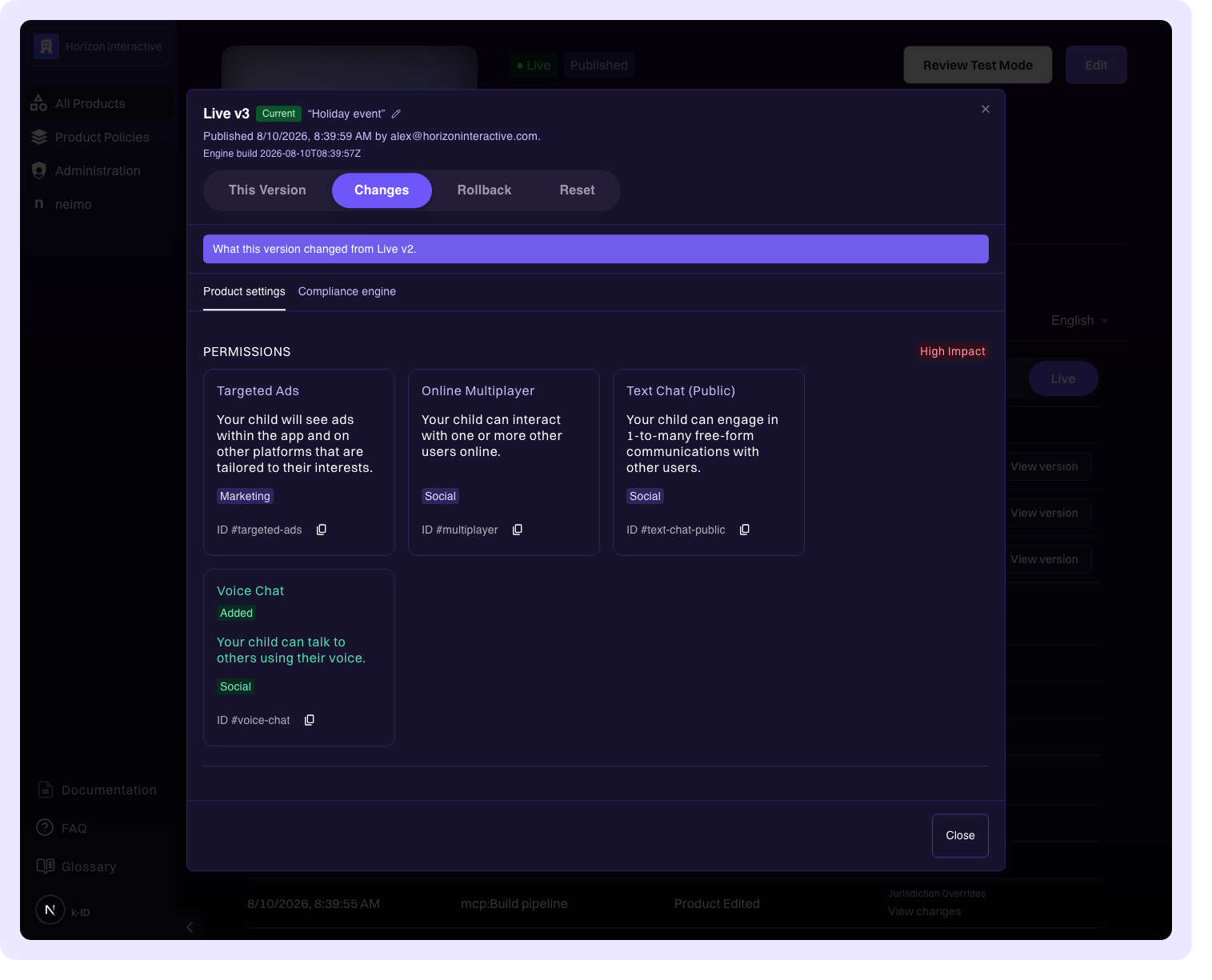
Each view carries the same two tabs as the activity diffs: product settings and Compliance Engine.
Rolling Live back
If a release causes a problem, roll Live back to the configuration it was serving before.
- On the History tab, open the version Live is currently serving.
- Select the Rollback view and read what would change.
- Click Roll back, then confirm.
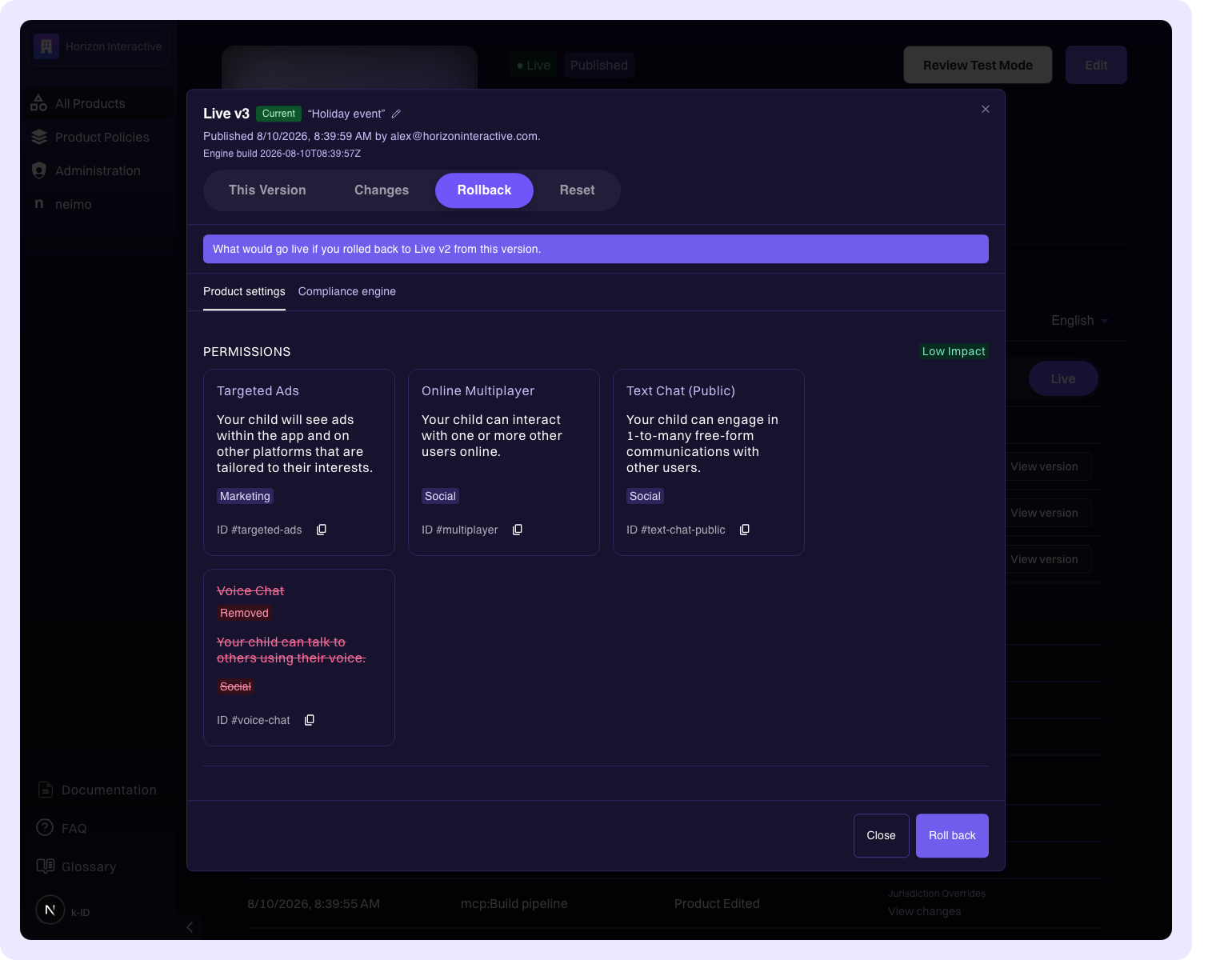
Live begins serving the earlier configuration within minutes.
Rolling back repoints Live at a configuration that was already published. It doesn't create a new version, so numbering is unaffected and the version you rolled off stays in the list.
Caution
A rollback changes your live configuration immediately, with no review step and no second approval. Undoing one is another live change.
Making a later version current again
A version ahead of the one Live is serving offers Make Current instead of Rollback. This is how you undo a rollback: point Live back at the version it was on before.
When rollback isn't offered
The version view explains which of these applies:
- One version at a time. Rollback steps Live back a single version. To reach something further back, start from the current version and step back one at a time.
- The undo window has closed. Rollback is offered for 30 days after a version goes live. Nothing expires: the configuration is still readable in the version list, and only the move is withheld.
- The configuration format is too old. Older versions use a configuration format that can no longer be served, so Live can't be pointed at them.
- Test can't be rolled back. Only the live configuration can. To change what Test serves, push to test again.
- Your role. Owners and administrators can move Live and rename versions. Developers and members can read the full history and every diff, but not change what's served.
Resetting your working copy
Your edits in the product editor are a working copy that's separate from what Test and Live serve. If you want to abandon those edits and start again from a published configuration, open the version that environment is serving and use the Reset view.
- On the current live version, the button reads Reset to Live.
- On the current test version, it reads Reset to Test.
The view shows exactly what you would lose before you commit to it, and says so plainly when your working copy already matches.
Resetting changes nothing that's being served. It only replaces your unpublished edits, and the working copy you replaced stays in the activity log, where you can read it and copy anything back.
Resetting is deliberately separate from a rollback, so that unwinding a release doesn't also throw away work in progress in the editor.