Testing and publishing
Compliance Studio provides a structured workflow for testing and publishing your product configuration. Changes are staged through test and live environments, with a review process to ensure compliance before going live. For background on the testing model, see Testing.
Test and live modes
Every product has two environments, Test and Live.
| Environment | Purpose | API keys |
|---|---|---|
| Test | Verify your configuration and integration during development | Test API keys |
| Live | Serve compliance rules to real users in production | Live API keys |
Changes made in the product editor are local until explicitly pushed to an environment. This means you can freely edit your configuration without affecting either environment until you're ready.
Pushing to test
After configuring your product, push your changes to the test environment to make them available via test API keys.
- In the product editor, click Push to Test.
- Confirm the push in the dialog that's displayed.
Your test configuration is now active. Use your test API keys to verify that your integration works correctly with the new settings. You can push to test as many times as needed; each push overwrites the previous test configuration.
Tip
Make it a habit to push to test and validate your integration after every significant configuration change. This catches issues early, before the review process.
Comparing test to live
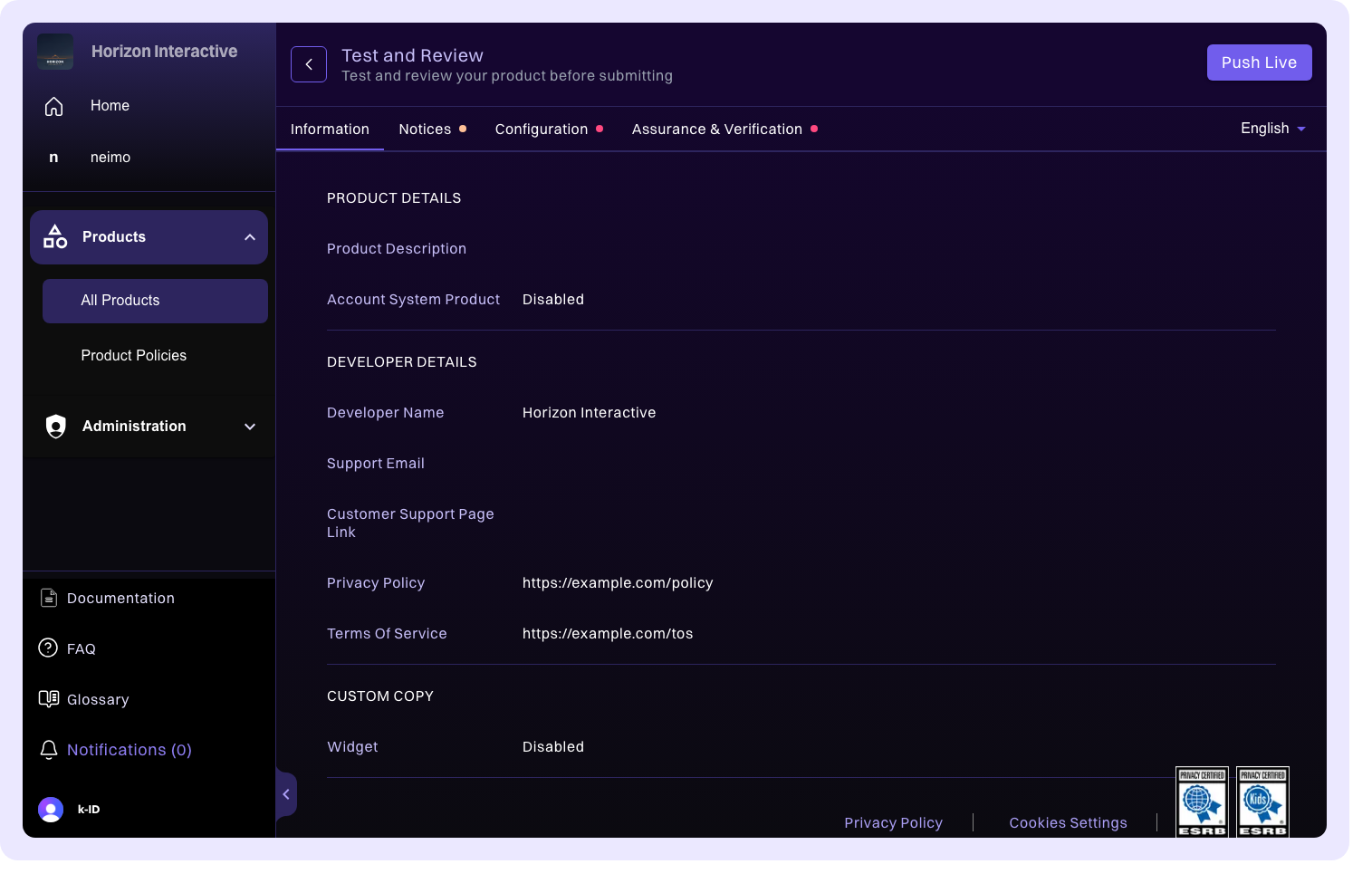
Before publishing, review exactly what changes by using the comparison view. This shows the differences between your test and live configurations, organized into tabs:
- Information: product details and metadata changes
- Configuration: product access, permissions, and engine override changes
- Notices: data notice and custom notice changes
- Verification: verification method and flow changes
Change impact indicators highlight which areas have been modified, making it easy to focus your review on what's different.
Submitting for review
Before your product can go live for the first time, or after significant configuration changes, you need to submit it for k-ID review.
- From the product page, click Submit for Review.
- The product state changes to In Review and a banner confirms the submission.
The k-ID team evaluates your configuration to ensure it meets compliance requirements for the jurisdictions and age groups your product targets. While in review, you can continue editing your local configuration, but you can't push new changes to test or live until the review is complete.
Review outcomes
Approved
Your product is cleared to publish. An approval banner is displayed on the product page with the option to push to live.
Rejected
Feedback is provided explaining what needs to change. Review the feedback, make the necessary adjustments to your configuration, and resubmit for review.
Publishing to live
Once your product is approved, push your configuration to the live environment to make it active for real users.
- Click Push to Live from the approval banner or the product actions menu.
- Optionally give the version a name, such as
Season 4 launch, so it's easy to recognize later. - Confirm the publish in the dialog that's displayed.
Your compliance settings are now active and being served via live API keys. The product state updates to Published.
Caution
Publishing to live affects real users immediately. Make sure you've thoroughly tested your configuration in the test environment and reviewed the comparison view before publishing.
After publishing
Every configuration you publish is kept. The product's History tab lists each version alongside the activity that produced it, shows what each change altered, and lets an administrator point Live back at an earlier version if a release causes a problem. See Version history and rollback.