Getting started
This guide walks you through accepting your invitation, logging in for the first time, and finding your way around the Compliance Studio portal. By the end, you're ready to create your first product and start configuring compliance settings.
Getting access
- New organizations are created by a k-ID representative. Contact your k-ID account representative or reach out to k-ID to get started.
- Additional users are invited by an existing Owner or Admin within the organization. You'll receive an email invitation with a link to accept and set up your account. See Inviting new members for details.
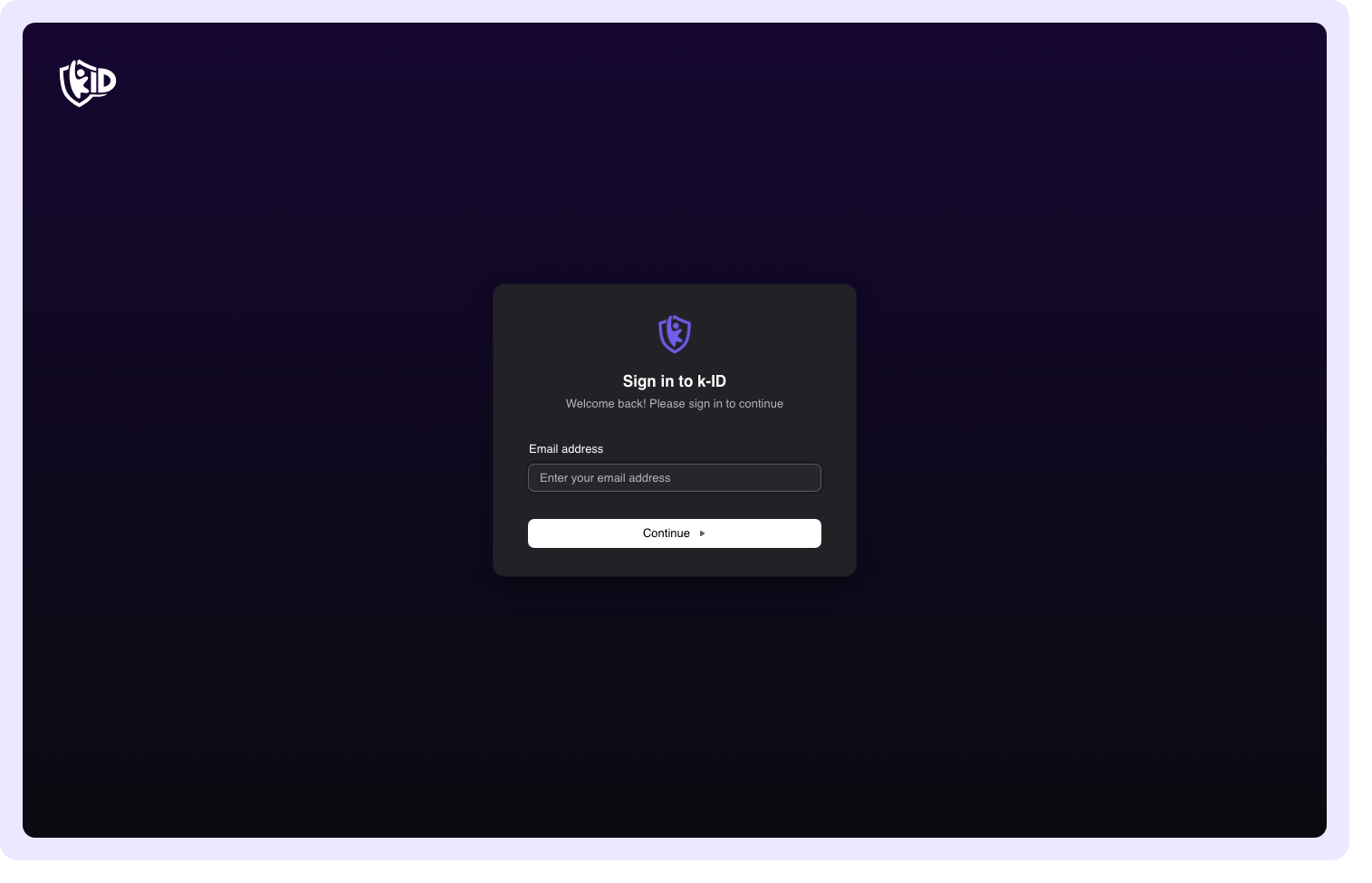
Logging in
Once you've accepted your invitation and set up your account, log in at portal.k-id.com with your email and password.
If your organization has configured Single Sign-On (SSO), you can authenticate through your corporate identity provider instead. See Configuring SSO for details on how SSO is set up.
Navigating the portal
Compliance Studio uses a collapsible sidebar on the left side of the screen for navigation.
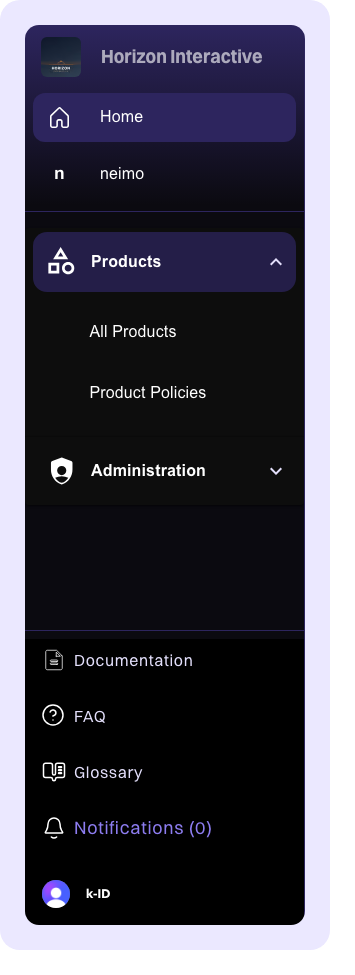
Sidebar layout
The sidebar is organized into the following sections from top to bottom:
| Section | Description |
|---|---|
| Organization switcher | At the top of the sidebar, displays your current organization name. Click to switch between organizations or manage organization settings. |
| Home | Returns you to the main dashboard |
| Products | Expandable section listing all products in your organization. Click the arrow to expand and see individual products, or click All Products to view the full list. |
| Administration | Access to organization management, member settings, and other administrative tools |
The bottom of the sidebar includes links to:
- Documentation -- Opens the k-ID Developer Hub
- FAQ -- Frequently asked questions
- Glossary -- Definitions of key terms
- Notifications -- View recent alerts and updates
- User profile -- Access your account settings and sign out
Collapsing the sidebar
Click the collapse icon at the top of the sidebar to minimize it, giving you more screen space when working with product configurations.
Understanding your dashboard
The dashboard is your home screen in Compliance Studio. It provides an at-a-glance view of your recent activity and quick access to common tasks.
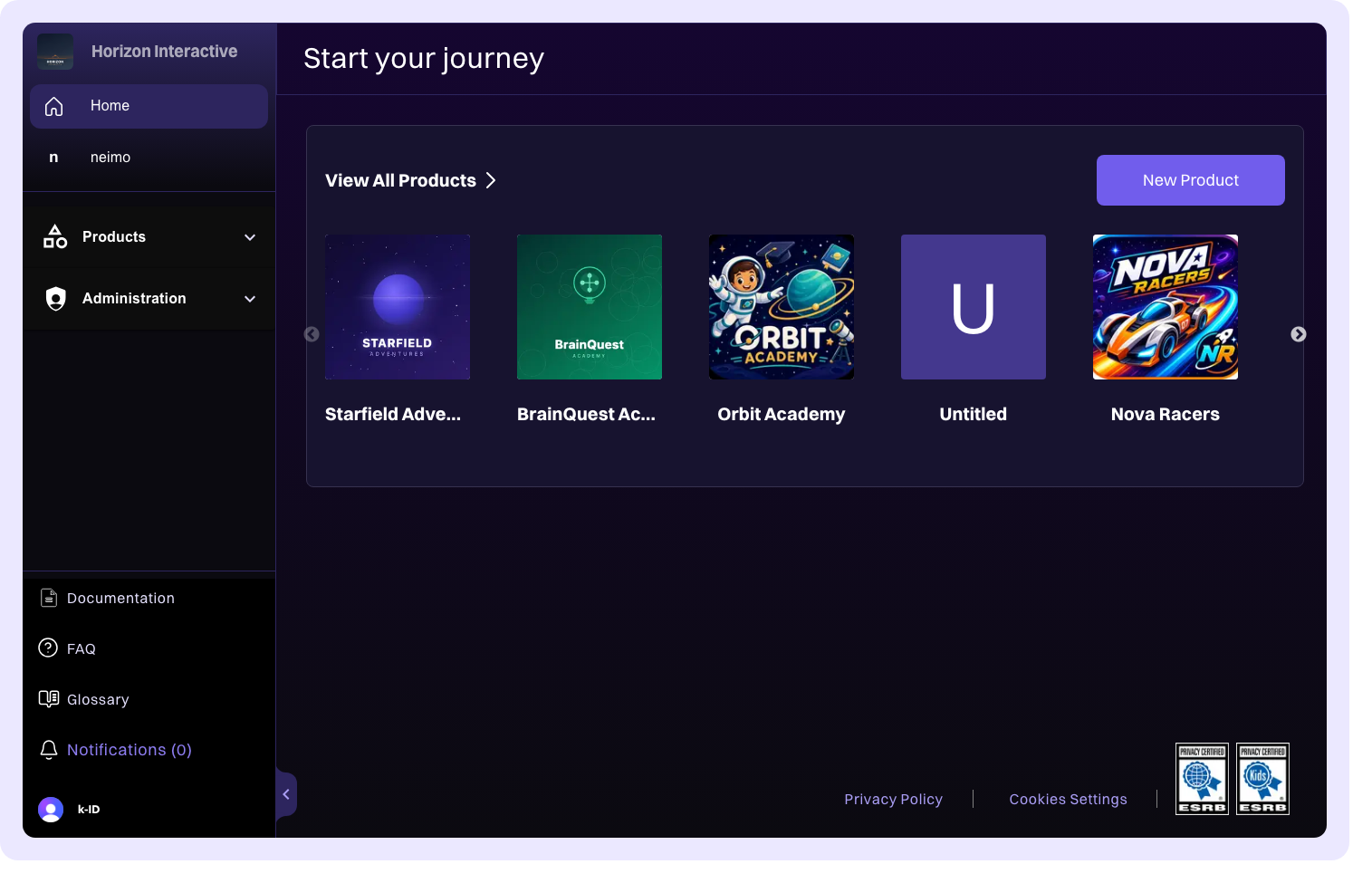
Recently updated products
The top of the dashboard displays your most recently updated products, making it easy to pick up where you left off.
Quick-access cards
Below your recent products, the dashboard shows quick-access cards organized into sections. These cards provide shortcuts to commonly used features and tools. The specific cards you see depend on your role within the organization and the features enabled for your account.
Organization context
Everything in Compliance Studio -- products, settings, members, and configurations -- is scoped to the currently selected organization.
If you belong to multiple organizations, use the organization switcher at the top of the sidebar to change your active organization. When you switch organizations, the product list, dashboard, and all settings update to reflect the selected organization's data.
Warning
Make sure you've selected the correct organization before creating or modifying products. Products belong to the organization that was active when they were created.