Attaching a policy to your product
Attach a Product Policy to your product so the policy's compliance configuration replaces the product's settings. While the policy is attached, most compliance tabs are read-only and managed by the policy. Permissions is partially editable. See What happens after attaching.
Prerequisites
- A Product Policy must already exist. See Product Policies for how to create one.
- You must have edit access to the product.
Steps to attach
- Open the product in Compliance Studio and enter edit mode.
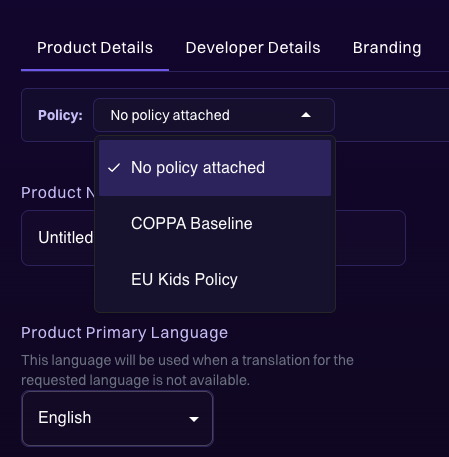
- At the top of the product edit screen, locate the Policy selector. By default it reads No policy attached.
- Select the policy you want to attach from the dropdown.
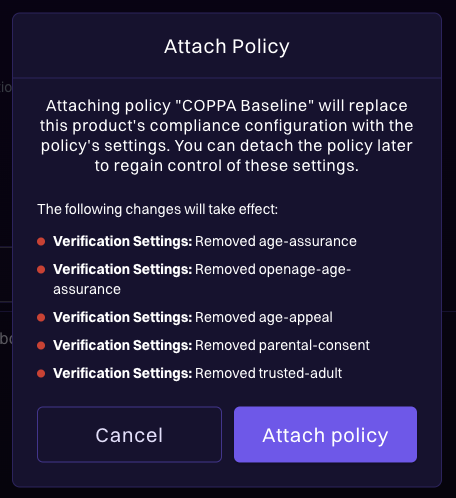
- A diff modal is displayed showing the configuration changes that take effect. Review the changes and click Attach policy to attach it, or Cancel to keep the current configuration.
What happens after attaching
- The policy's compliance settings replace the product's compliance configuration on all surfaces except Permissions (see below). Any settings previously configured directly on the product are overwritten by the policy.
- Product Access, Engine & Overrides, and Verification Settings become read-only with a banner indicating the policy manages these settings.
- Permissions is partially editable:
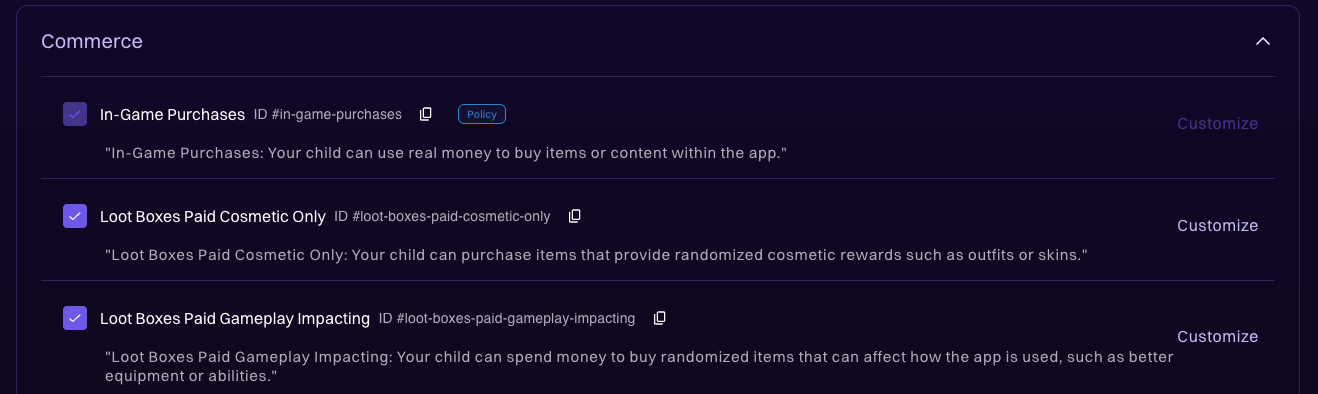
- Permissions enabled by the policy are locked. They're marked with a Policy badge and can't be toggled off or edited on the product.
- You can still enable additional standard permissions on top of what the policy provides. These are kept on the product if the policy is later detached.
- Custom permissions are policy-owned while a policy is attached. The + Add Custom Permission button is hidden, and any product-level custom permissions are dropped on attach.
- The policy selector bar at the top of the product edit screen shows the attached policy name.
- Within the configuration view, the Policy badge is displayed only on Permissions cards. It isn't shown on Product Access, Engine, or Verification cards.
Applying the configuration
Attaching a policy doesn't immediately change your product's test or live configuration. To apply the policy-driven settings:
- Click Push to Test to apply the policy's configuration and review it.
- Click Push Live when you're ready to apply the configuration to production.
Policy drift detection
If the attached policy is updated after you last pushed to test, you'll see indicators that new policy changes are available:
- A "Policy updated" badge is displayed next to the product in the product list.
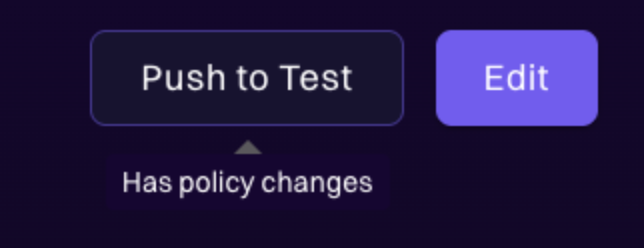
- The Push to Test button re-enables with a tooltip indicating the type of pending changes.
- Push to test again to pick up the latest policy changes.

Switching policies
If you have unsaved changes on any product tab, the policy selector is disabled. Save (or discard) those changes first. Interacting with the disabled selector surfaces a reminder.
You can switch from one policy to another without detaching first.
- In the Policy selector, choose a different policy from the dropdown.
- A diff modal is displayed showing the configuration differences between the current product compliance and the new policy.
- Review the changes and click Continue with switch to confirm, or Cancel to keep the current policy.
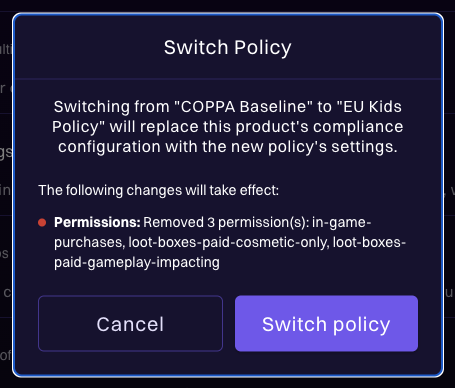
After switching:
- The new policy's settings replace the previous policy's settings on the product.
- Compliance configuration tabs remain read-only, now reflecting the new policy.
- You must Push to Test for the updated configuration to take effect.
Cloning a product with a policy
Copying a product that has a policy attached also attaches the same policy to the new product. The copy starts in draft state; push to test to apply the policy's configuration.