Adult verification
The default configuration for Adult Verification includes verification methods and providers for each market.
Enabling, disabling, and Fallback only
Under the Assurance and Verification tab, each verification method your product lists there can be configured as follows:
Enabled: The method can be shown to users according to the usual rules (for example, based on jurisdiction).Disabled: The method is never shown.Fallback only: The method is shown only after the user has attempted another verification method and that attempt didn't produce an age signal (it ended without determining whether the user meets your age criteria). Use this when you want a backup method available only when a prior attempt failed to reach a conclusive verification outcome.
You can use custom notices to provide market-specific product information, regulatory notices or warnings, or any other relevant details to parents.
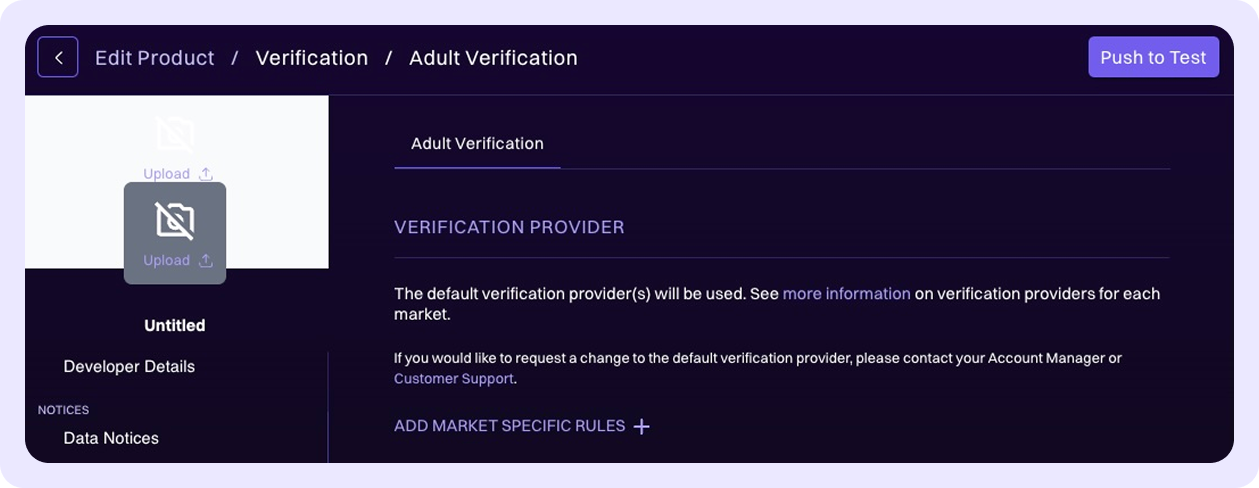
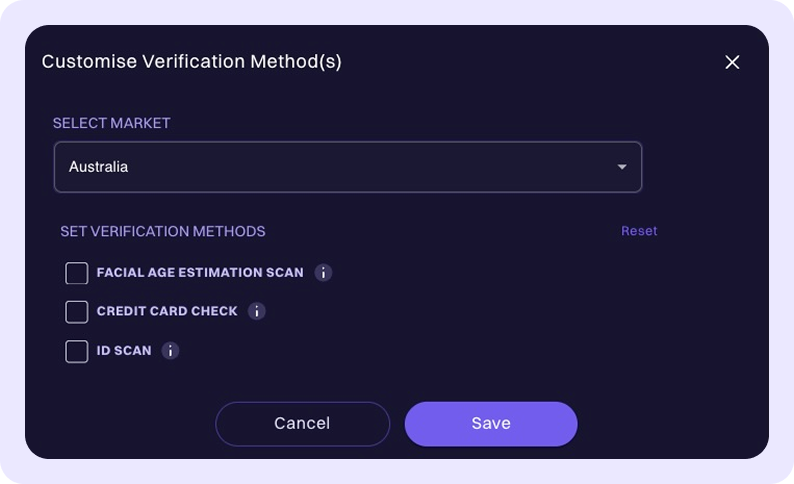
To add Market Specific Rules for adult verification methods, click Add Market Specific Rules +. Then, select the relevant verification methods.
Ordering verification methods
Each enabled verification method in the Assurance and Verification tab has a drag handle on its card. Drag a card to reorder the list, or use keyboard controls for accessibility. The order you choose controls the sequence in which methods are presented to the user in the Family Connect verification widget (see waterfall flow).
Enabledmethods can be reordered.Disabledmethods can't be dragged and always appear beneath enabled methods until you enable them.- A Reset to default order link preceding the list restores the canonical k-ID default order for the currently enabled methods.
- Toggling a method on appends it to the end of the current order. Toggling a method off removes it from the order.
Fallback onlyis independent of ordering. Fallback-only methods stay hidden until another method has been attempted without producing an age signal; ordering only changes the display order among methods that are currently visible.
Saving your changes
Save behavior depends on where you're editing the list:
- Changes to the global list (the default methods for all markets) save automatically.
- Changes inside a Market Specific Rule save when you click Save in that market's accordion.
Order precedence
When the widget builds the verification screen for a user, it picks an order by walking this list in priority order and using the first non-empty override it finds:
- Exact jurisdiction override (for example,
US-CA). - Parent jurisdiction override (for example,
USfor a user inUS-CA). - The global, flow-level order for the product.
- The canonical k-ID default order.
An empty list at any tier falls through to the next tier.
Flows that use this ordering
The same ordering controls apply to every verification flow configurable on the Assurance and Verification tab:
- Age Assurance
- Age Appeal
- Trusted Adult
- Parental Consent
The Trusted Adult flow's order is also applied to the Age Attestation method at runtime.