Product policies
Product Policies let you define shared compliance configuration once and apply it across multiple products. Instead of configuring each product independently, you create a policy, attach it to your products, and the policy's settings replace the product's compliance configuration.
When to use product policies
- Launching multiple products with similar compliance needs. Define your compliance posture once and reuse it.
- Reducing configuration drift. Keep shared settings in one place so your products stay aligned.
- Speeding up multi-product rollouts. New products can adopt a policy instantly instead of being configured from scratch.
Key rules
- One policy per product. A product can have at most one policy attached at a time.
- Policy replaces compliance configuration. Attaching a policy overwrites the product's compliance settings with the policy's settings. The product's identity fields (name, description, logo, banner) are unaffected.
- Mostly read-only while attached. Product Access, Engine & Overrides, and Verification tabs are read-only while a policy is attached. The Permissions tab allows product-level additions on top of the policy's permissions. See How policy application works for the per-surface breakdown.
- Cloning copies the attachment. Copying a product that has a policy attached also attaches the same policy to the copy.
- Changes aren't immediate. Policy updates take effect for a product only when that product is next pushed to test or pushed to live.
What a policy covers
A policy controls settings across all compliance configuration surfaces:
- Product Access: minimum age settings, market-specific rules, Data Lite mode
- Permissions: which permissions are included and how they're configured
- Engine & Overrides: global baseline, global minimums, market-specific overrides
- Assurance & Verification: age assurance, age appeal, adult verification, and parental consent methods per market
What a policy doesn't cover
Product name, description, logo, and banner images are inherently per-product and aren't part of a policy.
Creating a policy
- Navigate to Product Policies in the left navigation.
- Click New Policy.
- Enter a name and description for the policy.
- Optionally, select an existing product to clone compliance settings from as your starting point.
- Click Create Policy.
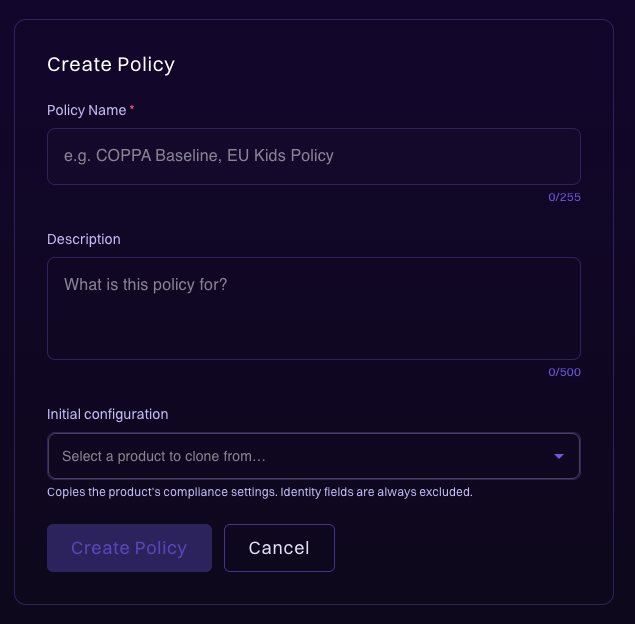
Once created, configure the policy's compliance settings across the Configuration and Assurance & Verification tabs, the same surfaces available on a product.
To learn how to connect a policy to a product, see Attaching a policy. For details on how the policy's settings are applied, see How policy application works.