Detaching a policy
If your product's compliance needs have diverged from the policy, or you want to manage all settings directly on the product, you can detach the policy at any time.
Steps to detach
- Open the product in Compliance Studio and enter edit mode.
- In the Policy selector at the top of the screen, select No policy attached.
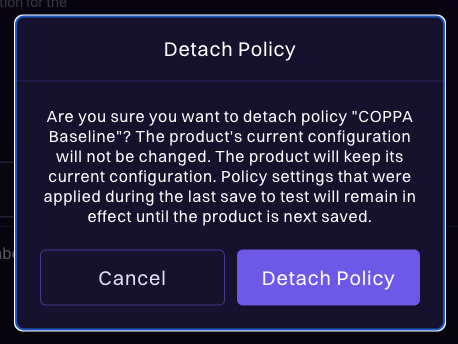
- Confirm the detachment in the modal.
What happens after detaching
When you detach a policy, the policy's current compliance settings are written onto the product as its own settings. This ensures the product's configuration remains consistent with what the policy provided. Specifically:
- Your current test and live configurations remain unchanged.
- Product Access, Engine & Overrides, and Verification Settings now reflect the policy's configuration as directly editable product-level values.
- Permissions that came from the policy are written onto the product as directly editable standard permissions. Any additional standard permissions the product added while the policy was attached are preserved.
- Custom permissions previously provided by the policy are kept as the product's own custom permissions.
- All compliance configuration tabs become editable again. The read-only lock is lifted.
- The product stops receiving future policy updates.
- You can now modify any compliance setting directly on the product.
When to detach
- Your product's compliance needs have diverged significantly from the policy.
- You want full control over all settings directly on the product.
- You're restructuring your policy setup and plan to attach a different policy.
Re-attaching a policy
You can attach a different policy (or the same one) at any time by selecting it from the Policy selector. The new policy's settings replace the product's compliance configuration. See How policy application works for details.